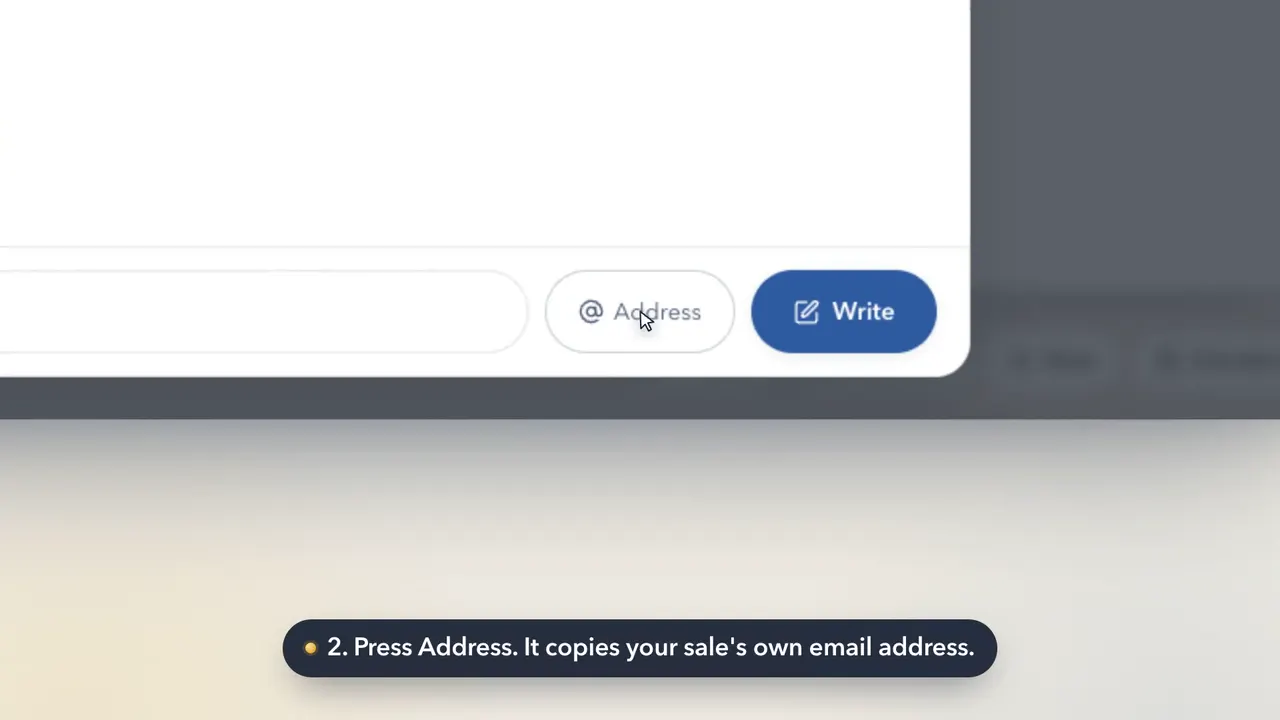
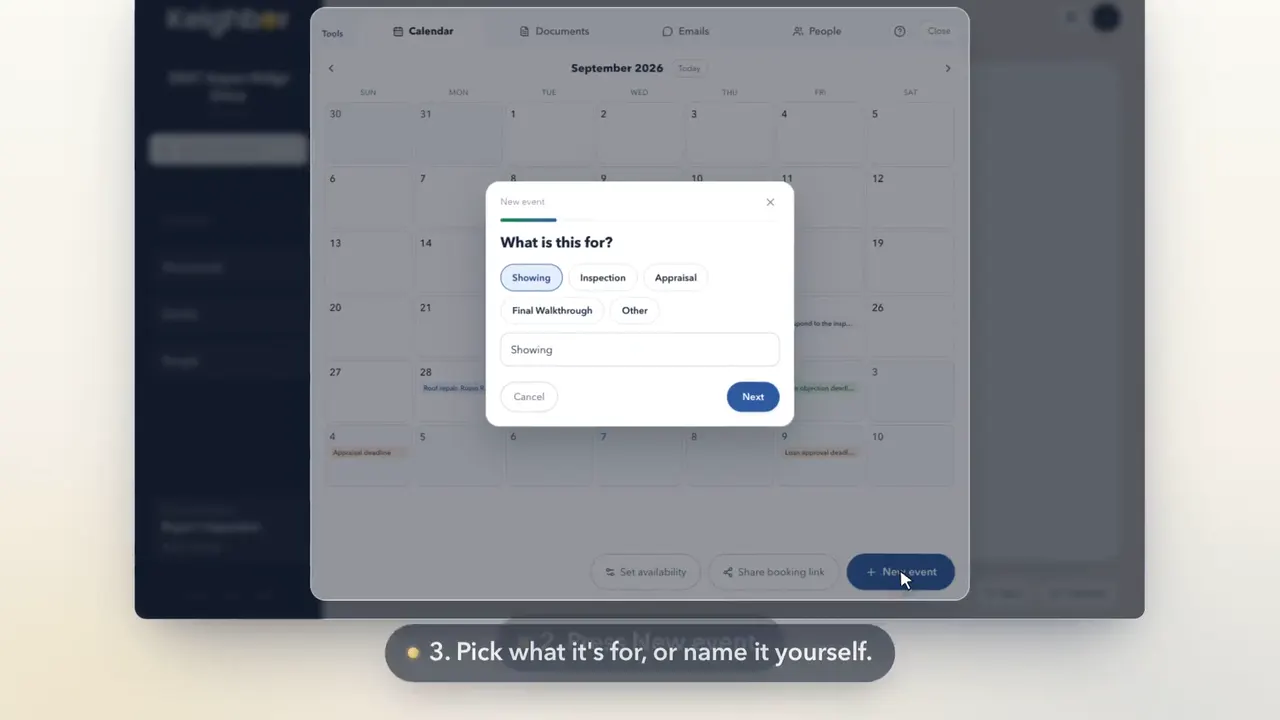
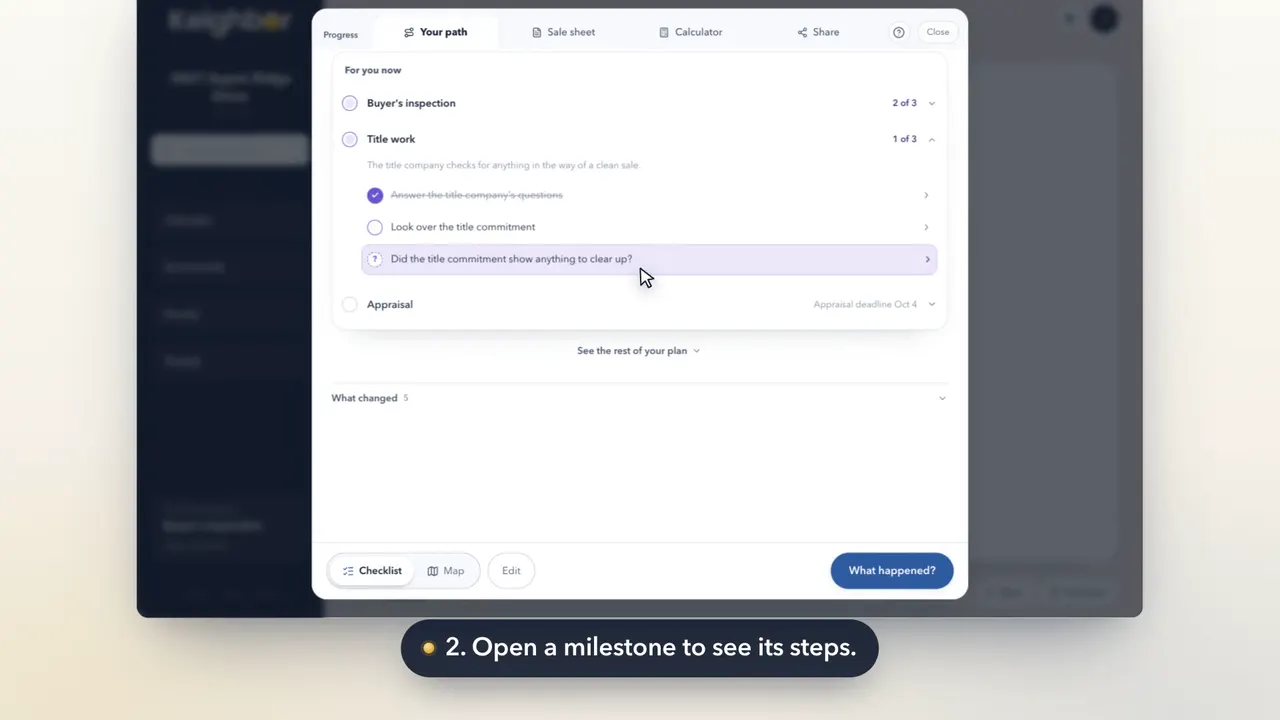
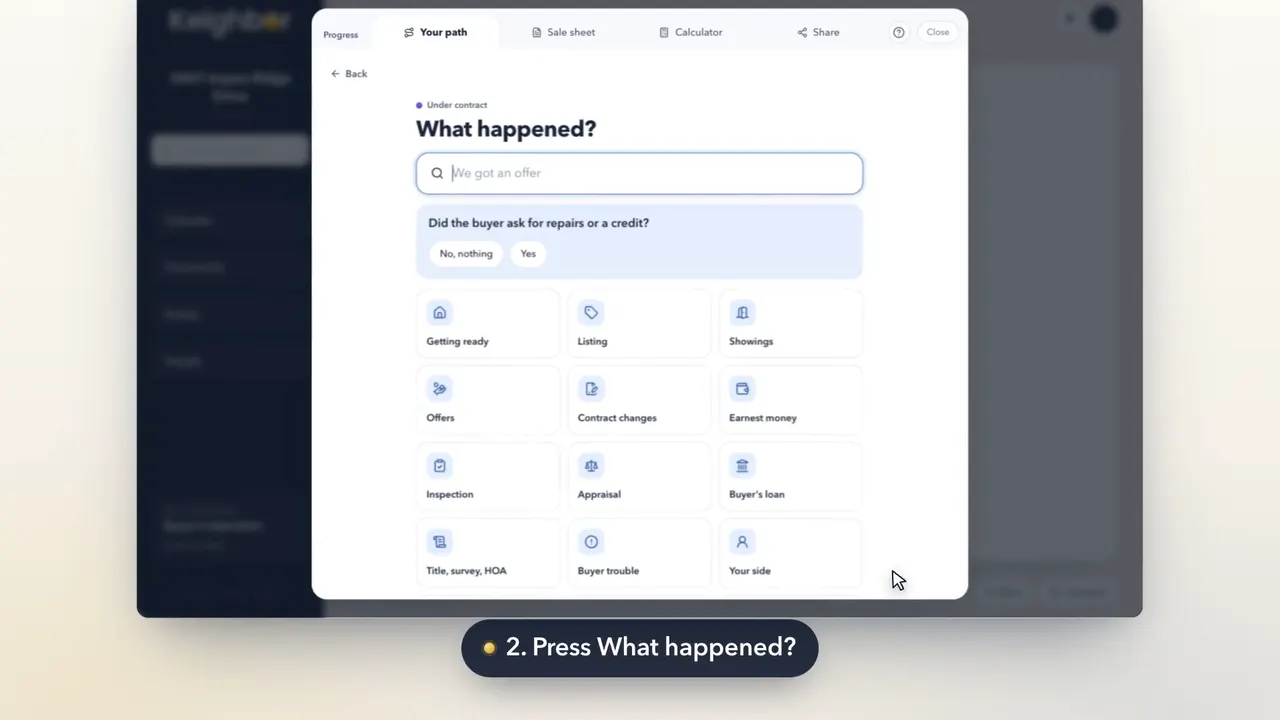
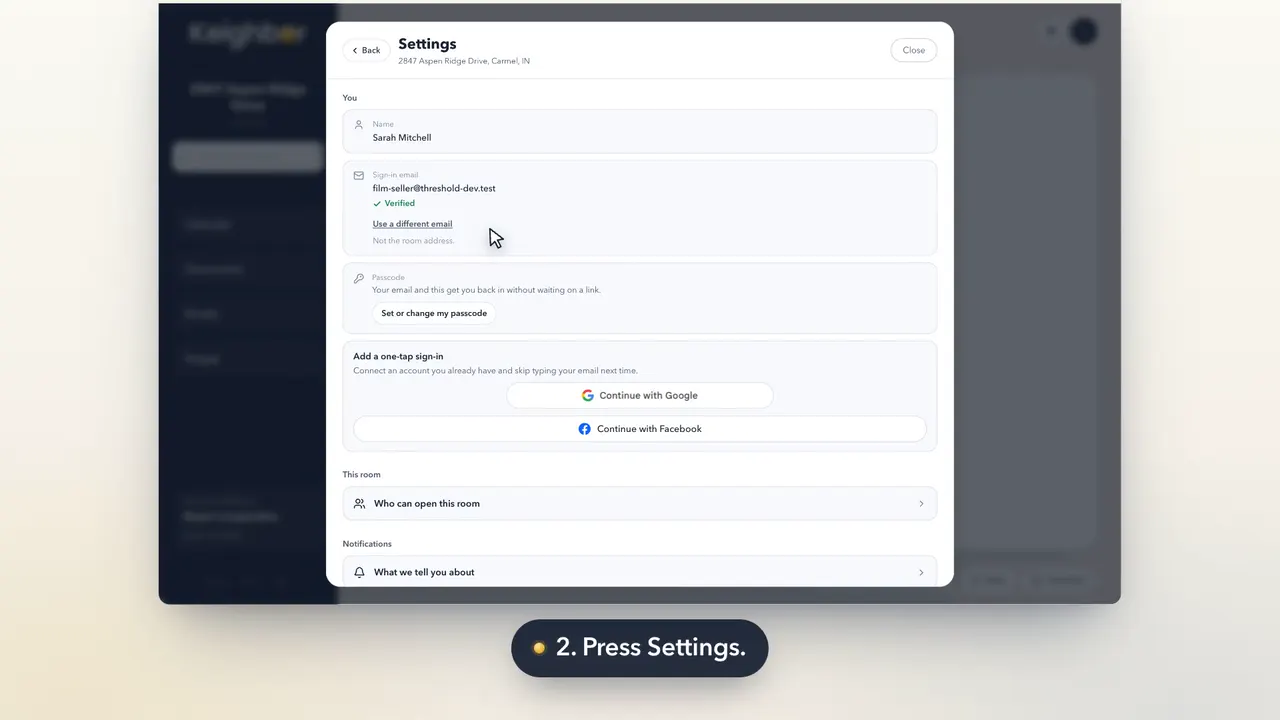
You can write to anyone on your sale from your room. It goes out from your sale's own email address, so their reply comes back to the room.
Step by step
Open Emails in the menu.
Emails is the third row in the menu on the left.
Press Write.
It's the blue button at the foot of the Emails panel.
Pick a side of the sale, then the person.
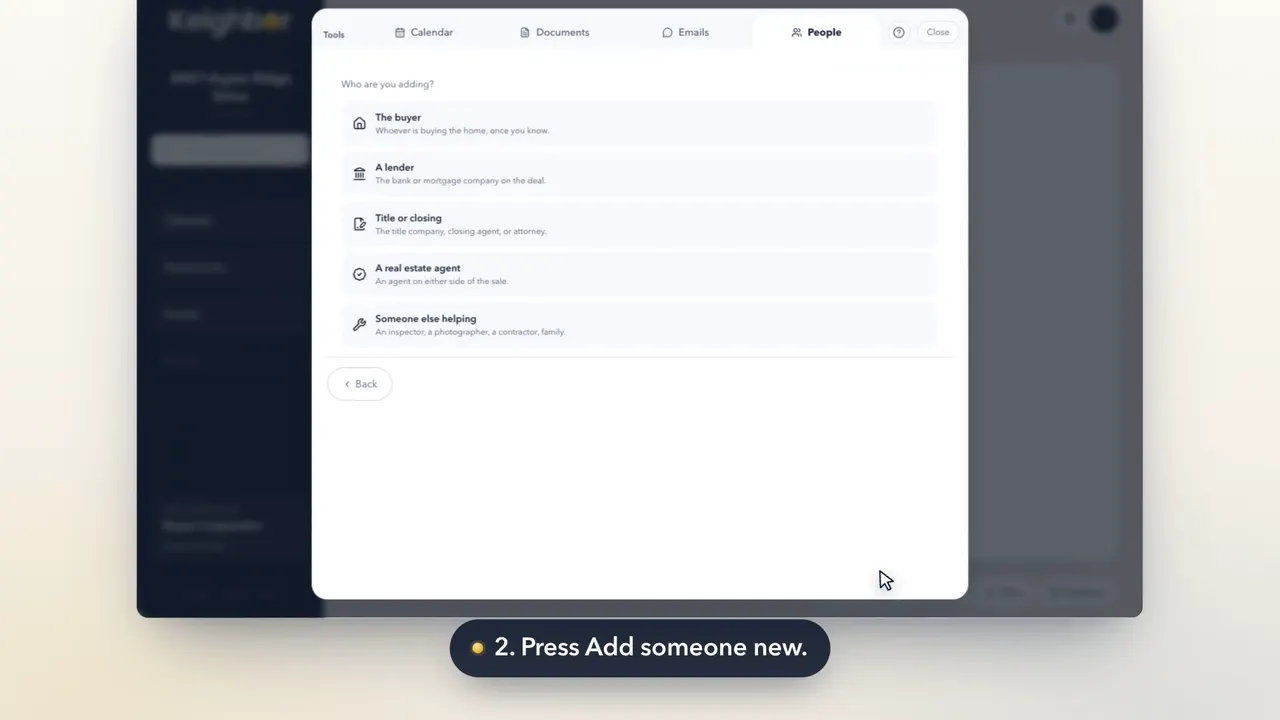
Press Seller, Buyer, Lender or Title, then tick the people to send to. Someone else lets you type an address.
Add a subject and your message.
Type a subject line and your message.
Attach anything from your documents.
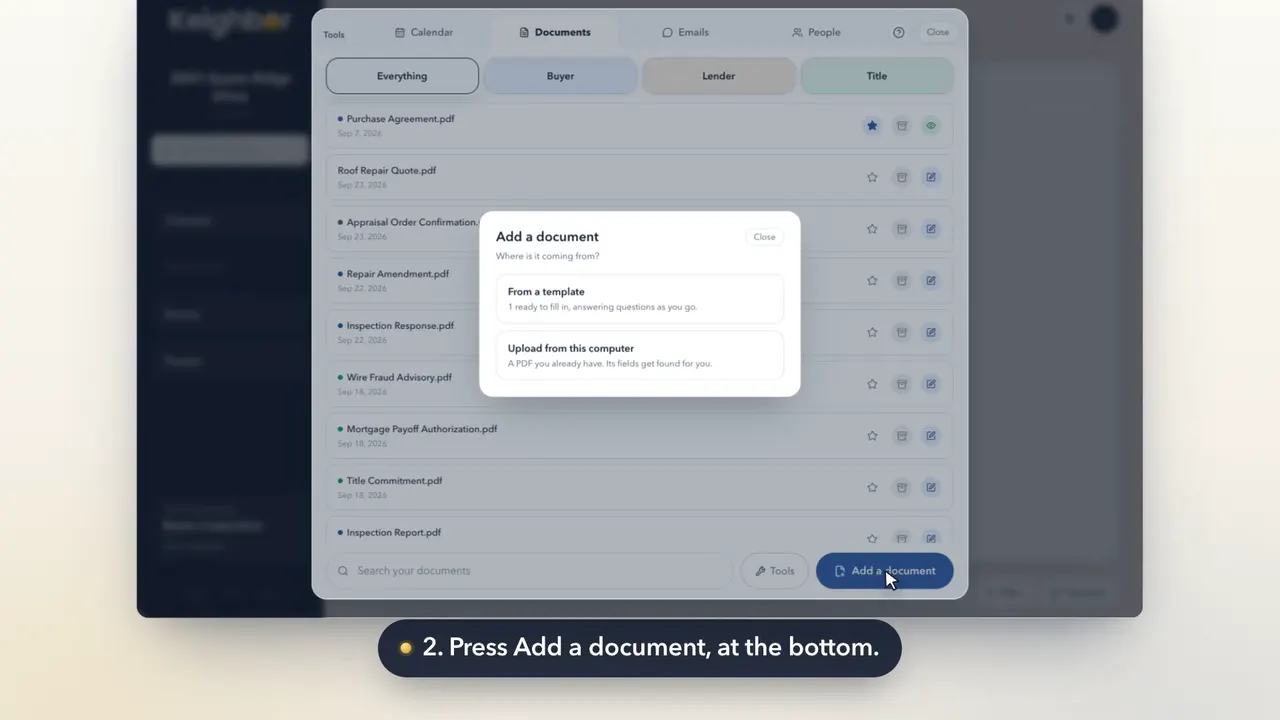
Press Add documents, then choose from your document vault or from your computer. Tick the files and press Attach.
Press Send. It goes from your sale's own address.
It goes from your sale's own address, with your name on the From line. "Message sent" shows, and the new conversation sits at the top of Emails.
Good to know
- Replies come back into this room, in the same conversation.
- If an email doesn't go out, the room tells you, and your message is kept.