Documents holds every paper in your sale, filed under whoever it came from. You can add one from your computer at any time.
Step by step
Open Documents in the menu.
Documents is the second row in the menu on the left. On a phone, open the menu first.
Press Add a document, at the bottom.
It's the blue button at the foot of the Documents panel.
Choose Upload from this computer, then pick the file.
You can also start from a template here. For a file you already have, choose Upload from this computer and pick it.
It opens, ready to read, fill in, or send to sign.
A PDF opens in the editor, where you can read it, fill in its fields, or place spots for signatures. A picture is kept as it is.
Close it. The file is kept in Documents.
Press Close at the top right. The file is in your list, with today's date.
Good to know
- PDFs, PNGs and JPEGs all work. A file over 15 MB can take a while to upload.
- You can also drag a file from your computer and drop it anywhere in your room.
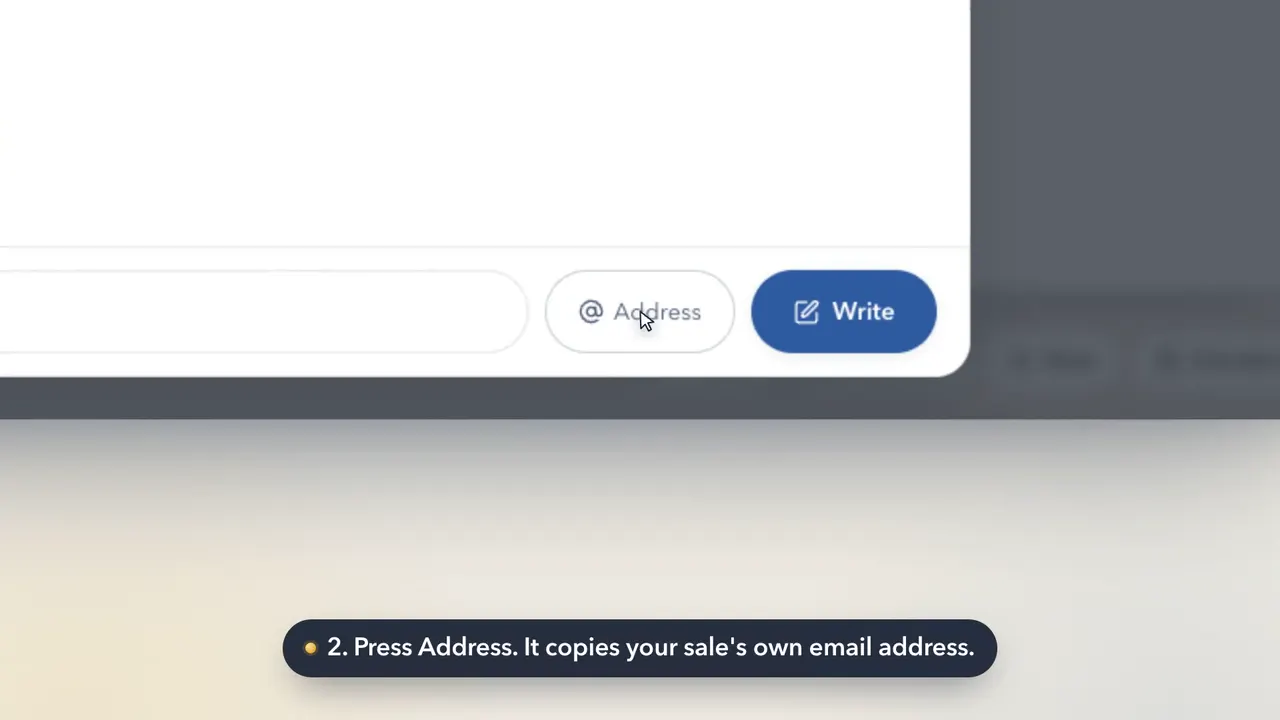
- Files attached to emails sent to your sale's address are filed here on their own.