Your calendar keeps every date in your sale: showings, appointments and deadlines. We remind you the day before each one.
Step by step
Open Calendar in the menu.
Calendar is the first row in the menu on the left.
Press New event.
It's the blue button at the foot of the Calendar panel, beside Set availability and Share booking link.
Pick what it's for, or name it yourself.
Pick Showing, Inspection, Appraisal or Final walkthrough, or type a name of your own. Then press Next.
Add anyone who's coming, or skip it.
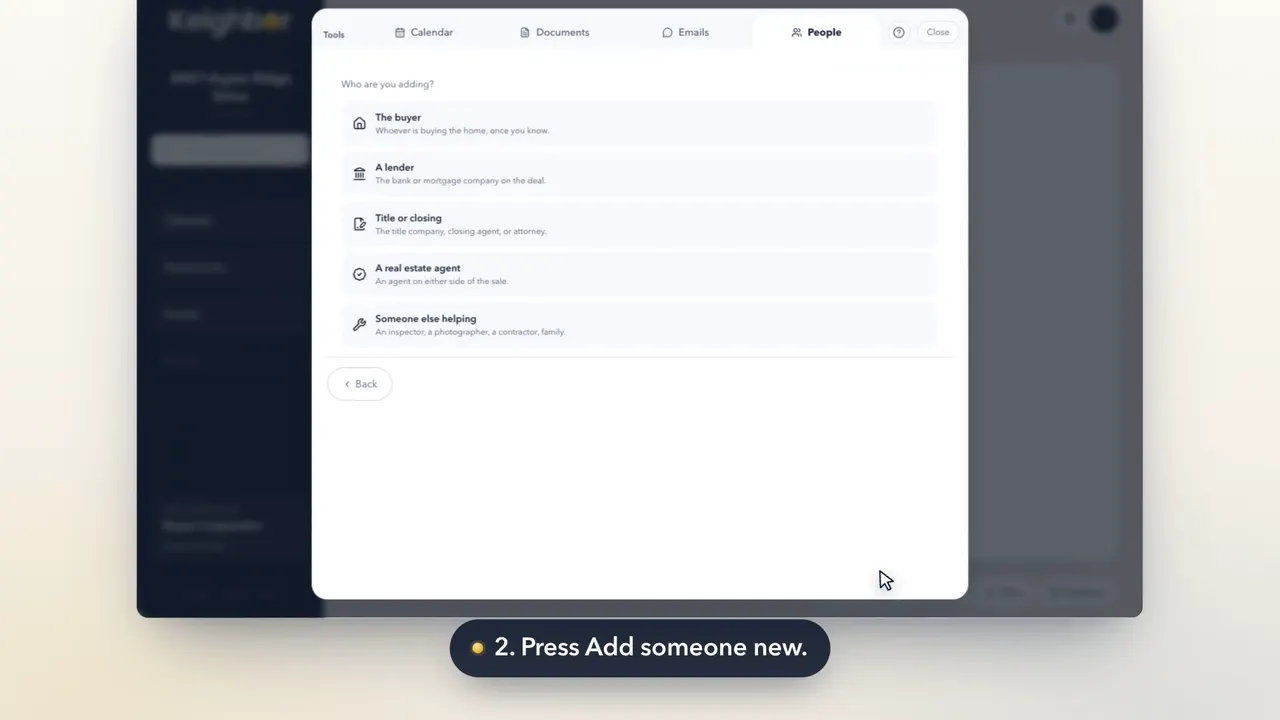
Choose people already on your sale, or add someone new. It's fine to skip this and press Next.
Pick the day.
Press a day on the month, or type the date. Then press Next.
Add a time if it has one.
Set when it starts and ends. Leave it blank for a deadline with no time. Then press Next.
Press Add to my calendar.
Add a note if it helps, like a gate code. Then press Add to my calendar.
Good to know
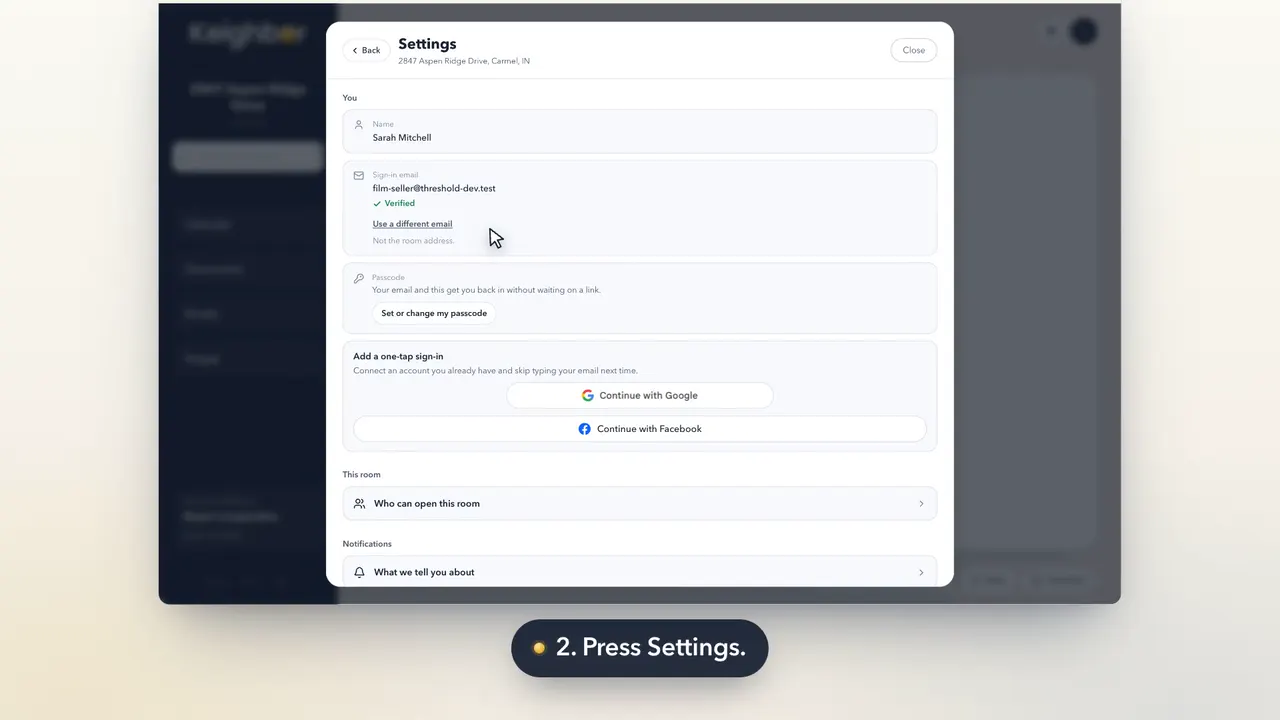
- The reminder comes by email. You choose how under What we tell you about, in My account.
- When a date is two days away, the gold button brings it up too.