Sales change: a closing date moves, a buyer asks for repairs, an appraisal comes in low. What happened? updates your plan to match, and shows you every change first.
Step by step
Press Progress, at the bottom of your room.
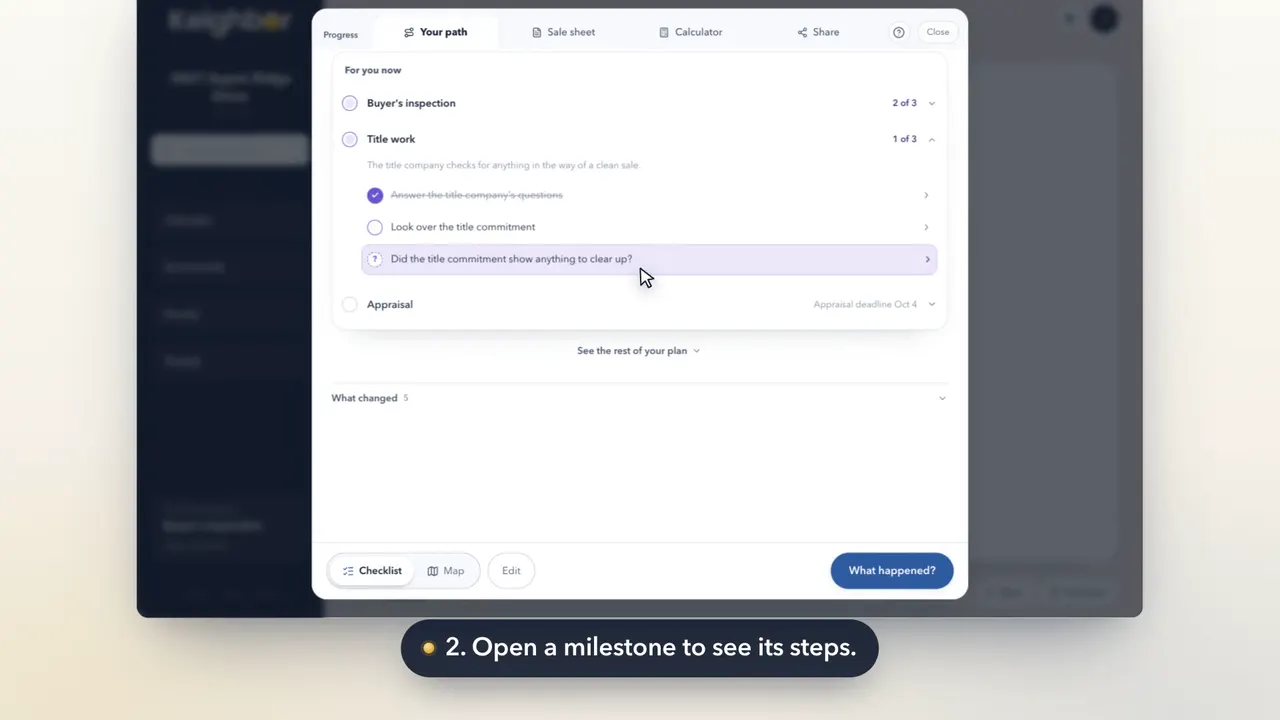
Progress is at the foot of your room, beside Sale sheet, Share and Calculator.
Press What happened?
It's in the footer of Your path.
Type what happened, in your own words.
Type a few words, like "closing date moved", or pick from the kinds of thing listed underneath.
Pick the closest match.
Press the one closest to what happened.
Answer a few short questions.
The questions depend on what happened. Here, it asks for the new date, whether the change is signed, and why.
See exactly what changes. Nothing changes yet.
You see what would be added, marked done and moved, before anything changes. Press Not now to leave it.
Press Update my path. Your dates and checklist move.
Your path, your dates and your calendar move together.
Good to know
- Nothing changes until you press Update my path.
- You can undo it from the checklist any time.